Commissioning
Objective
In this scenario, you will perform the initial "on-orbit" checkout of the Design Reference Mission (DRM) spacecraft. As the flight controller, your job is to make first contact, verify the health and status of the spacecraft's core systems, and transition it from its post-launch "safe mode" into a fully operational state, ready for nominal operations.
Prerequisites
Before you begin, please ensure you have:
- Successfully completed Getting Started.
- The TrySpace Lab environment is installed and able to run.
- Read the DRM Concept of Operations to understand the goals of the spacecraft you'll be controlling.
- Reviewed the System Architecture page to understand how the components interact.
Overview
The DRM spacecraft has just been deployed from its launch vehicle. It is currently in a power-saving and stable "safe mode". In this state, only essential components (C&DH and radio) are active, and it is saving basic health telemetry while awaiting its first commands from the ground. Your task is to walk through the commissioning checklist to bring it to full functionality.
We will follow these phases:
- Startup: launch tryspace-lab and verifying execution.
- First contact: establish the space link to the vehicle.
- Health assessment: verify the spacecraft is healthy.
- Subsystem checkout: power on and configure the core subsystems.
- Downlink data: inspect onboard files and download.
Startup
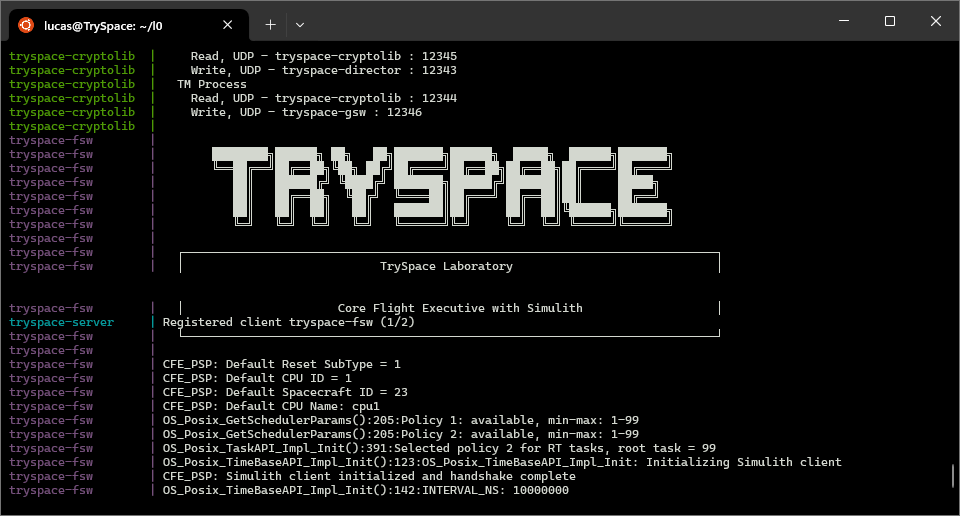
Launch TrySpace Lab:
- Open a terminal
- Navigate to your tryspace-lab repository -
cd tryspace-lab - Build -
make - Launch -
make start
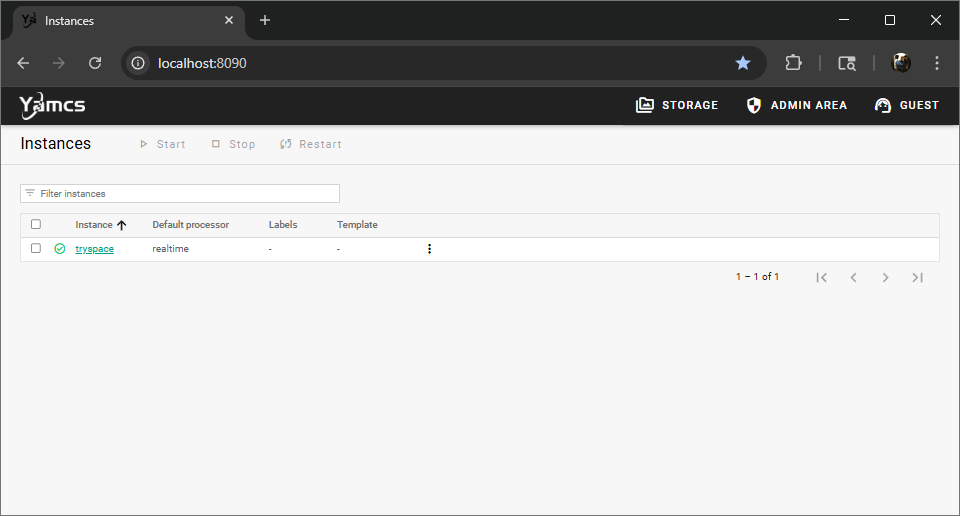
Open the YAMCS ground software: localhost:8090
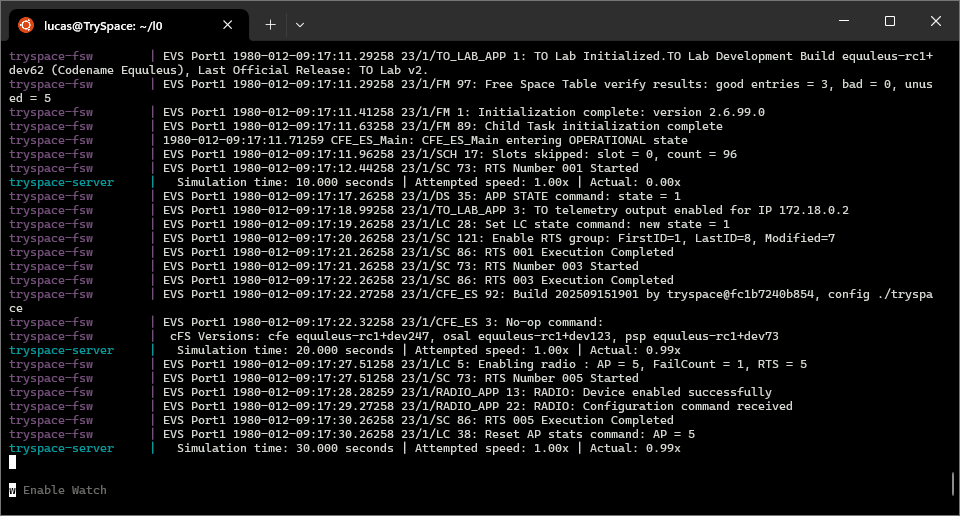
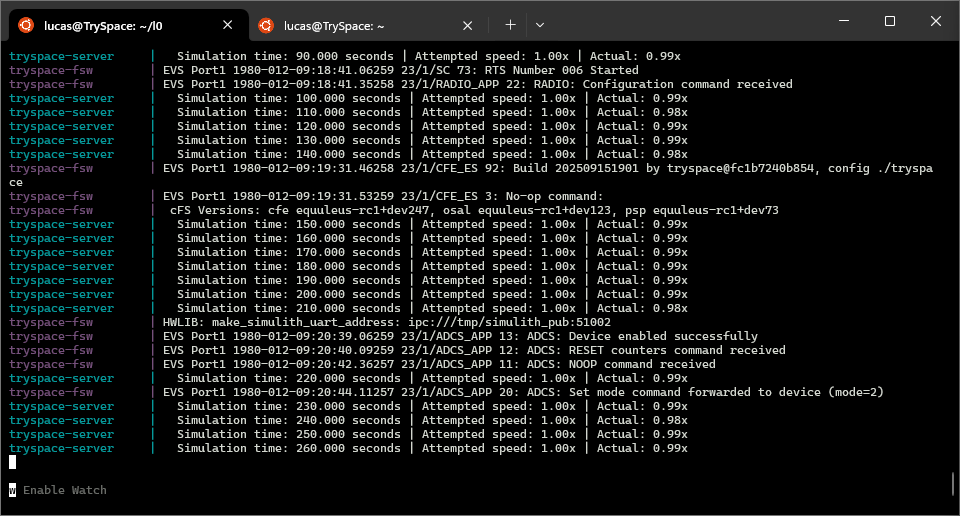
Verify everything is running - Confirm time is incrementing in the primary terminal window. You'll want to make sure the startup RTSs have completed prior to sending commands anytime you run. This includes RTS5 which ensures the radio is enabled and properly configured to receive ground commands.
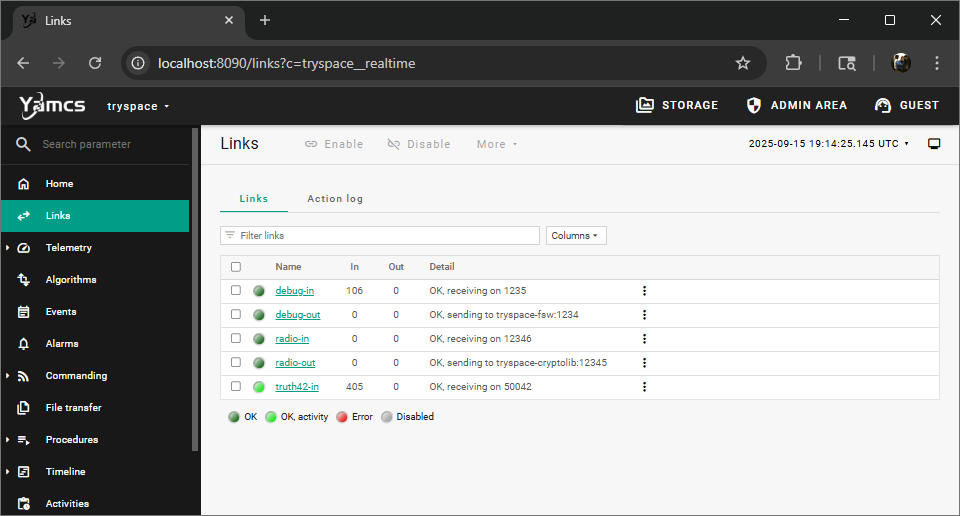
Verify everything is running - Ensure data is flowing through the YAMCS debug interface.
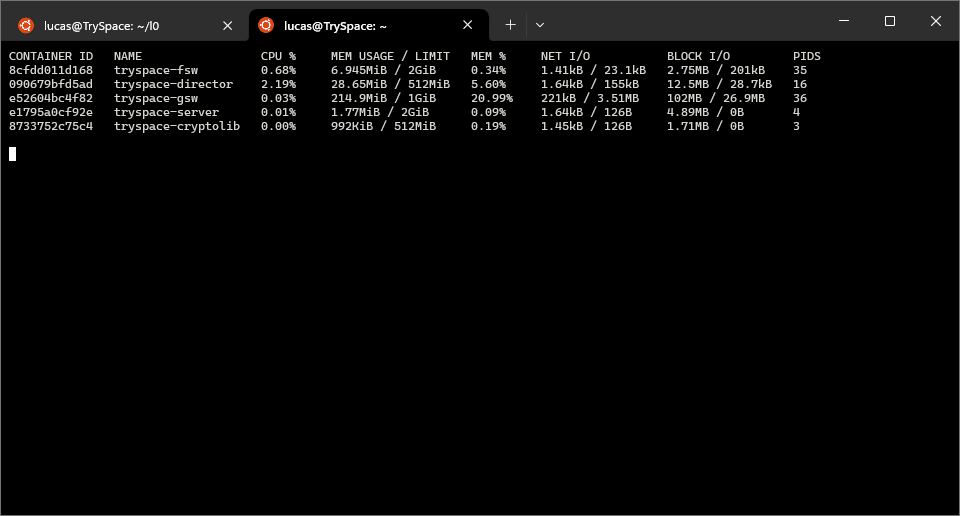
You can run docker stats in another terminal to view the running containers and the resources they're using.
First Contact
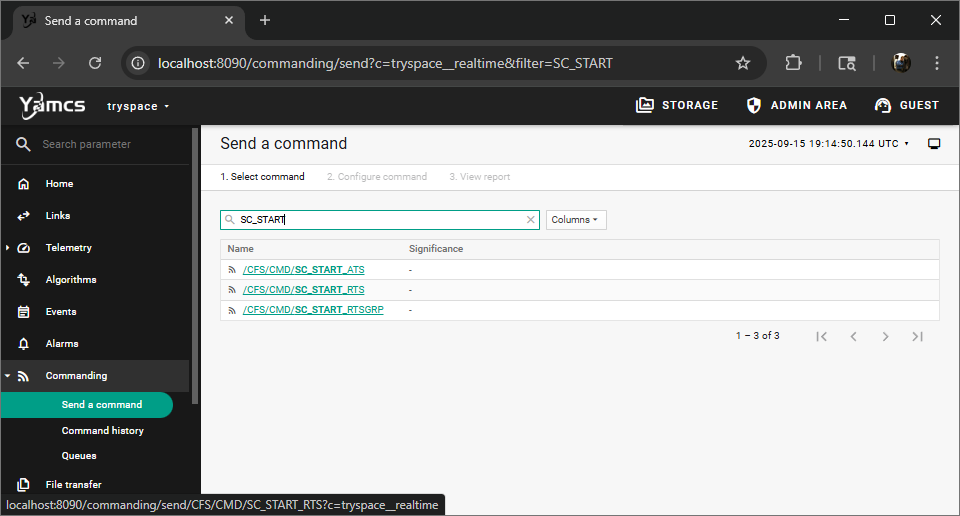
Command relative time sequence (RTS) 6 "Start Pass" - /CFS/CMD/SC_START_RTS with RTSID 6.
Note you can use the search bar to find commands and telemetry quickly.
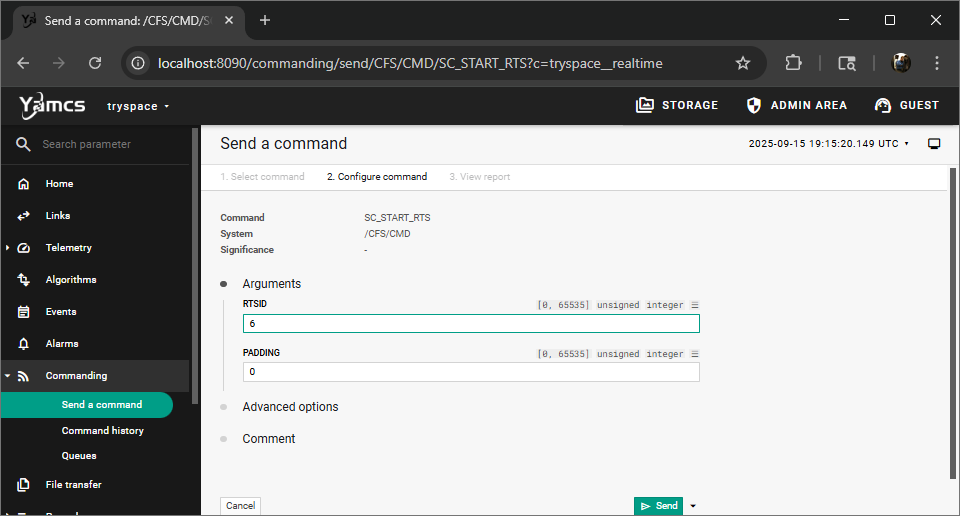
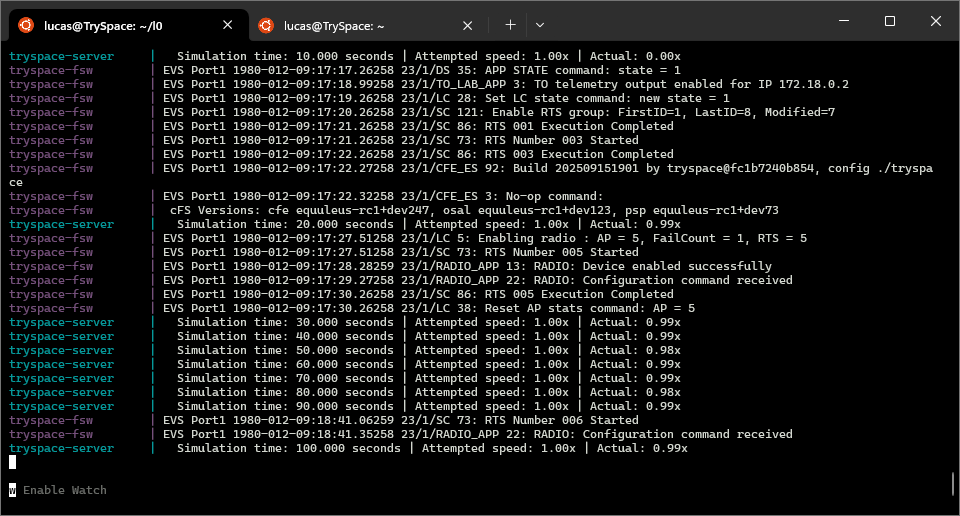
This enables the radio for 8 minutes simulating a long pass if the space vehicle was in a Low Earth Orbit (LEO). You should see FSW print receipt of the command.
The radio-in link should also be receiving data in YAMCS.
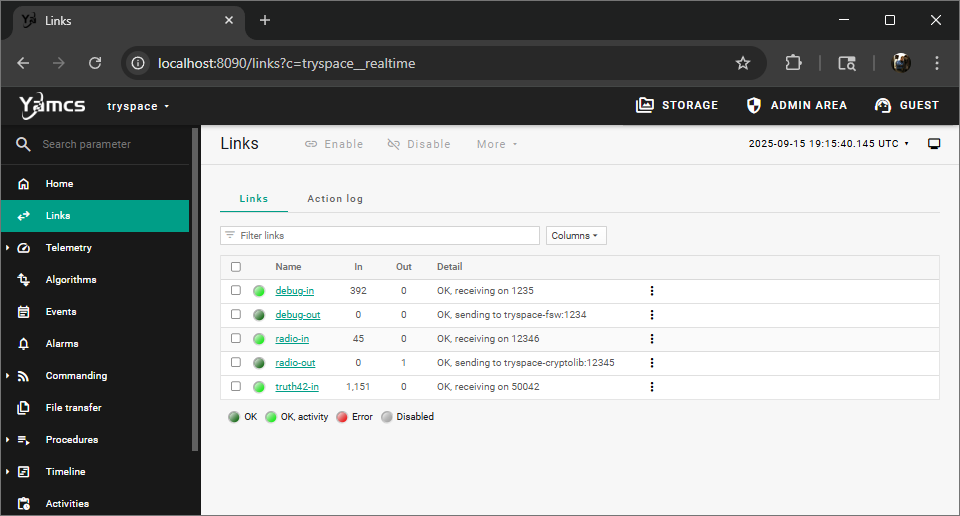
You've now successfully commanded and are receiving telemetry from your DRM spacecraft!
Note that as this pass completes you will stop receiving telemetry from the radio and see the RTS 006 Execution Completed message from FSW.
The telemetry from the debug interface will continue to flow after this so even if you take longer than the pass period you can complete this exercise.
Health Assessment
Test the command link with a /cFS/CMD/CFS_ES_NOOP, the "hello world" of the cFS Flight Software.
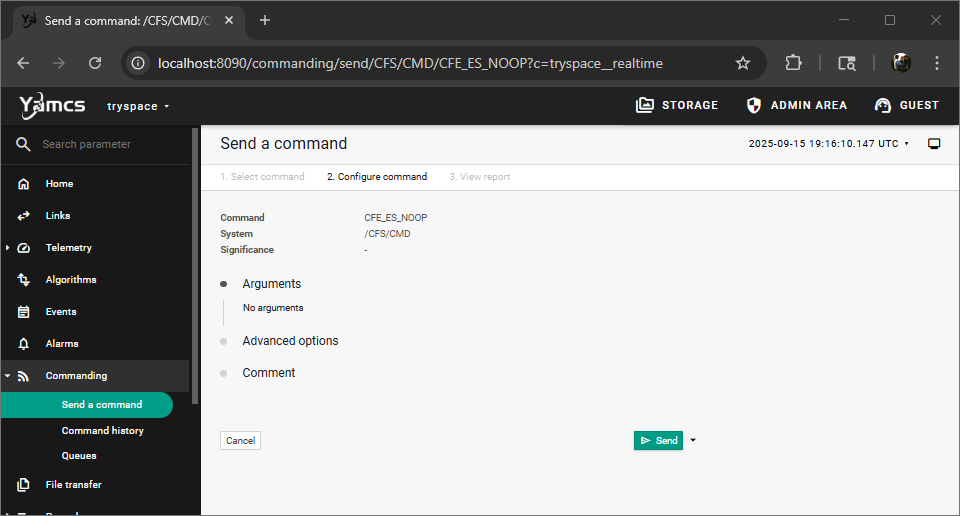
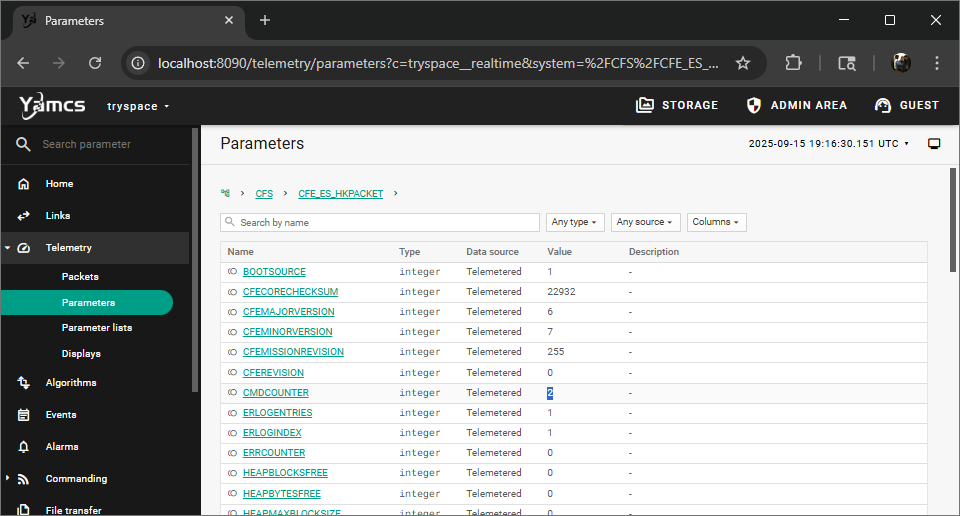
Ensure the command counter incremented. - CFS/CFE_ES_HKPACKET.
As another NOOP is sent by the current spacecraft RTS, it should read as 2.
Subsystem Checkout
ADCS
Initialize ADCS and confirm health - Procedures / Stacks / AdcsComponent.ysc
* Enables ADCS application.
* Confirms commanding by resetting counters and then sending a no operation (NOOP) command and confirming count increments.
* Displays current parameters.
* Sets mode to SUNSAFE.
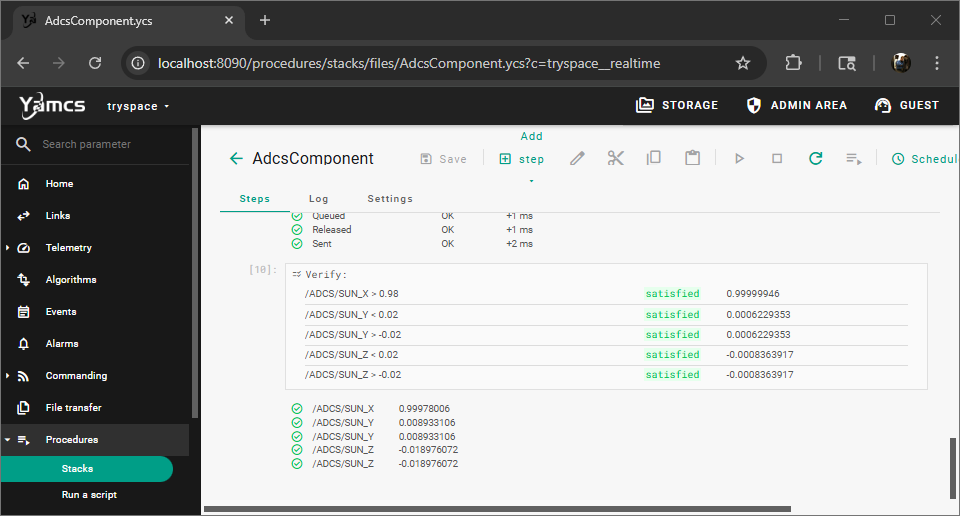
* Verifies successful sun pointing (X+ pointed at the sun or nearly a value of +1.0) over 60 seconds.
Select first step then clock the Run all from selected step button.
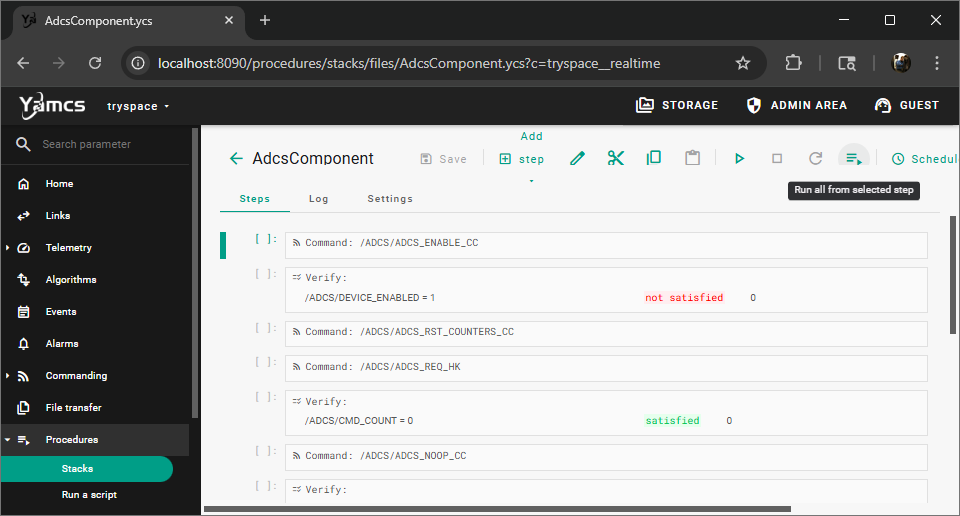
Confirm successful execution. This may take a little bit for the spacecraft to rotate and then stabilize within the desired margins.
Demo Instrument
Initialize demonstration instrument and confirm health - Procedures / Stacks / DemoComponent.ysc
* Enables DEMO application.
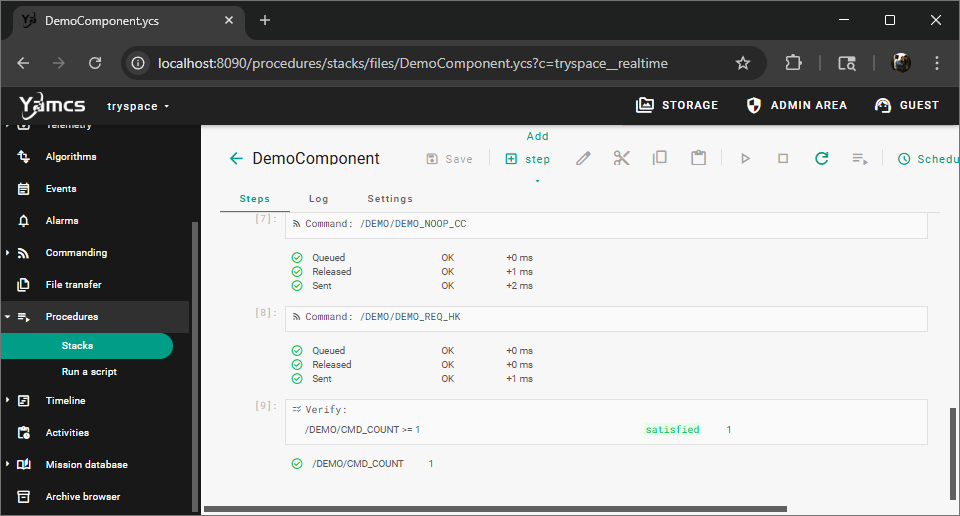
* Confirms commanding by resetting counters and then doing an application NOOP.
* Verifies command count increments.
Select first step then clock the Run all from selected step button.
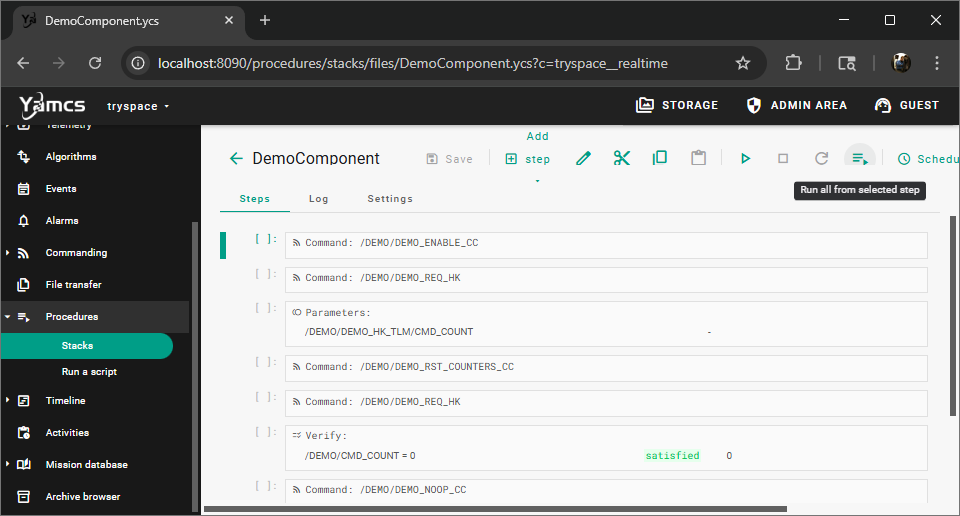
Confirm successful execution.
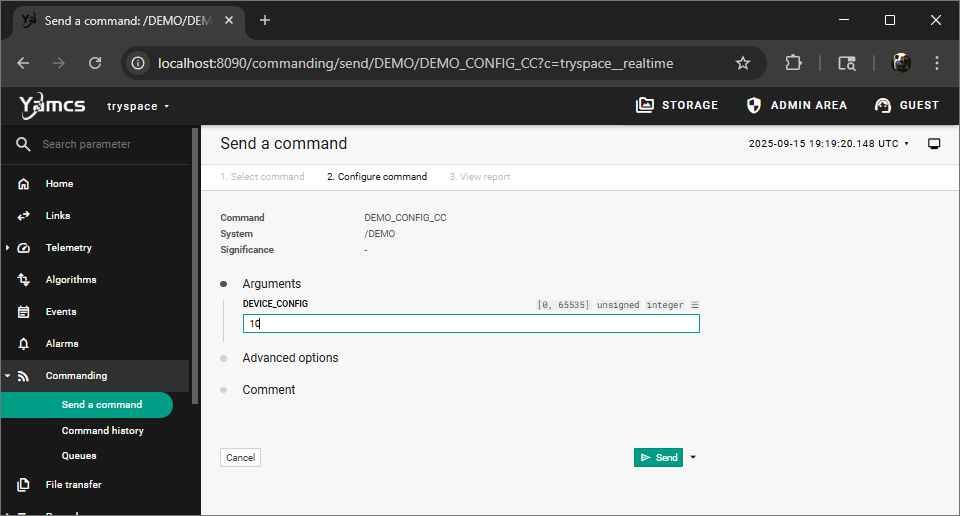
Now let's manually set the device configuration - Commanding / Send a command / DEMO / DEMO_CONFIG_CC with DEVICE_CONFIG 10
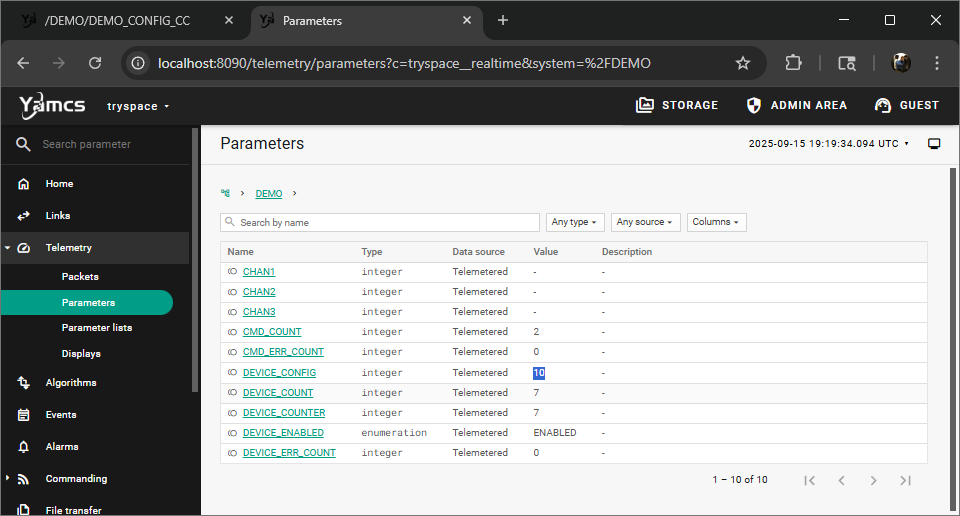
You may a new tab for viewing the configuration parameter and leave another for commanding if you'd like. Note you may have to wait for the parameter to update in telemetry (~10 seconds).
Download Data
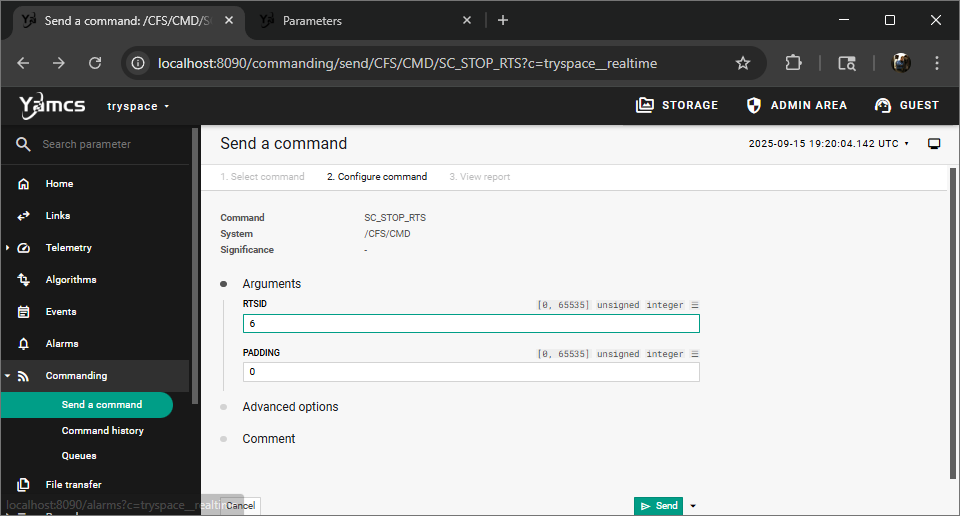
Let's stop RTS6 "start pass" and control the radio directly - /CFS/CMD/SC_STOP_RTS with RTSID 6
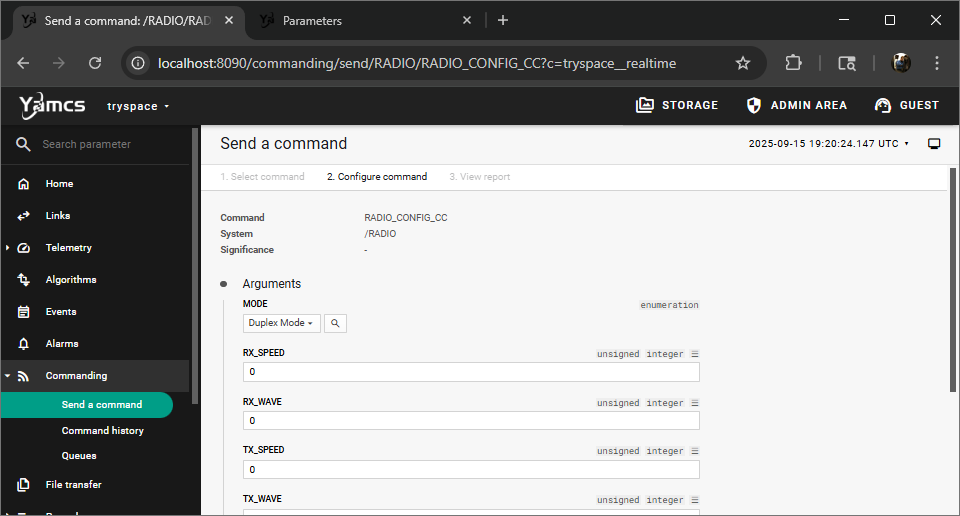
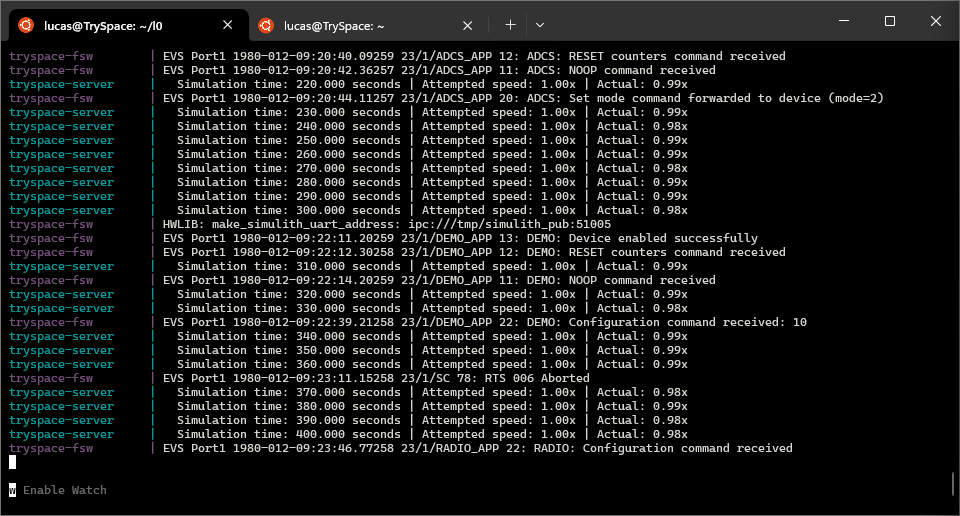
Manually set the radio mode to DUPLEX so that we can send and receive data without the time constraint of RTS6 - /RADIO/RADIO_CONFIG_CC with MODE 3 (DUPLEX).
The radio will need to be in DUPLEX mode (both transmit and receive) in order to do reliable or Class 2 file transfers.
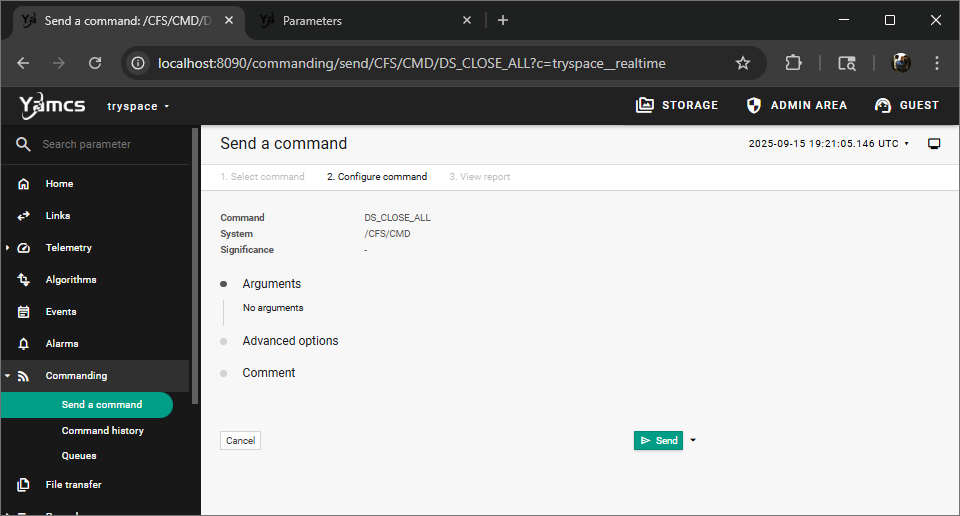
Close the current file set that the Data Storage (DS) application is using so we can download it - /CFS/CMD/DS_CLOSE_ALL
Check what data exists on the space vehicle using the File Manager (FM) application in cFS - /CFS/CMD/FM_GET_DIR_PKT with DIRECTORY /d
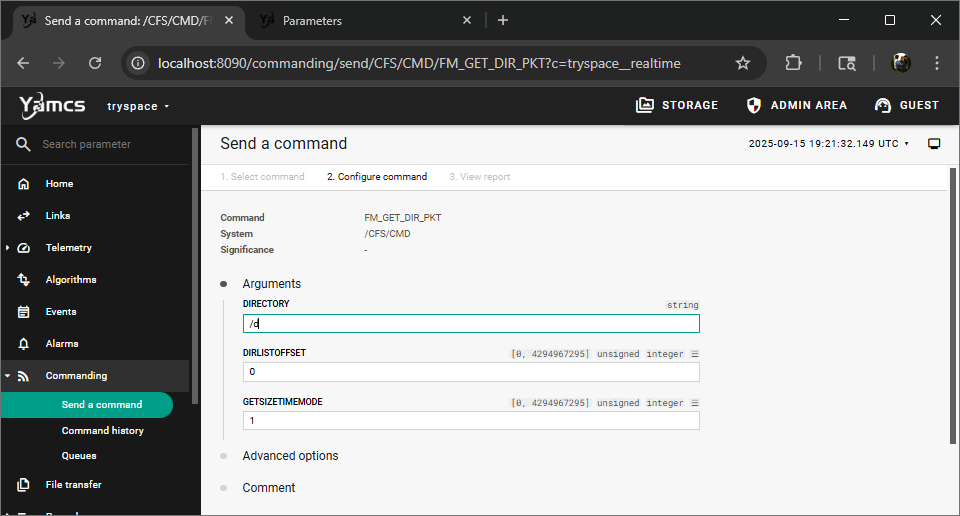
Wait for this data to be collected and sent to the ground in the /CFS/FM_DIRLIST_PKT
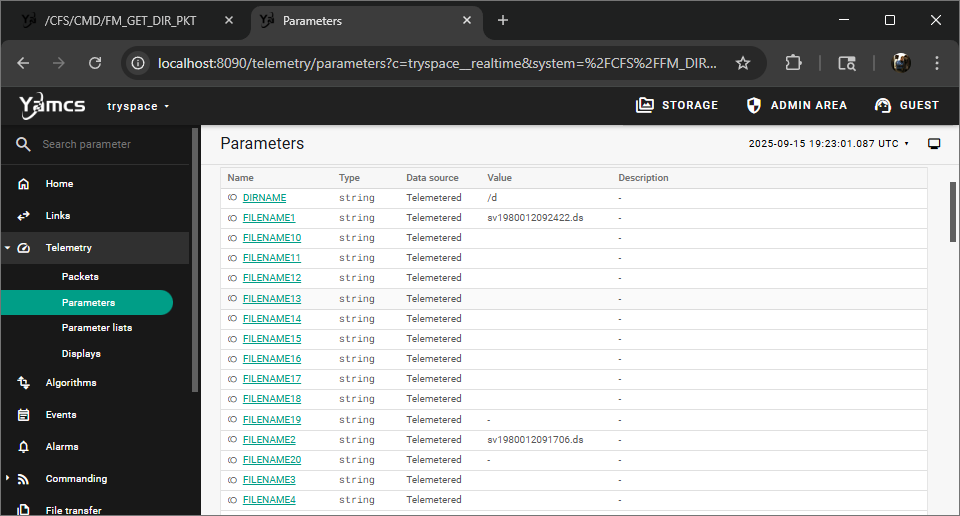
Copy the FILENAME2 you receive, for example - sv1980012091706.ds, as it's older (lower time stamp in filename).
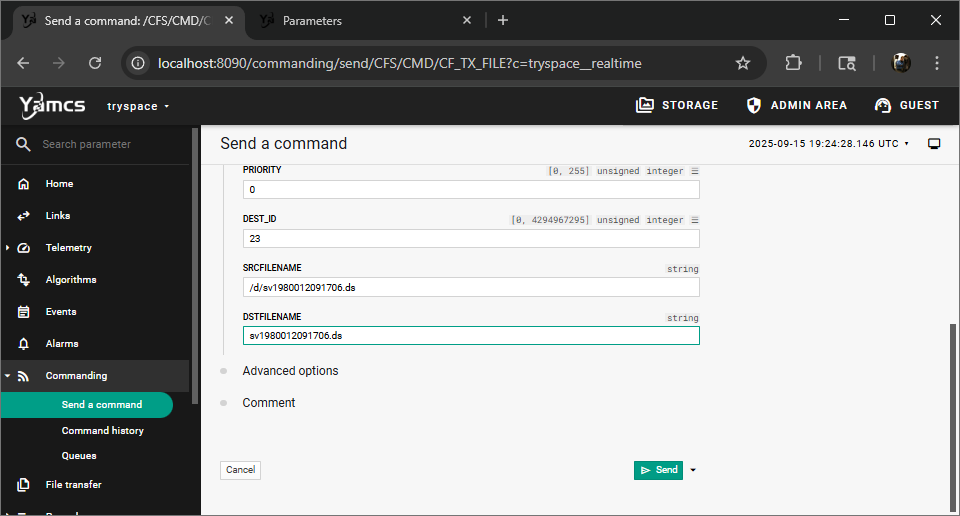
Use the CCSDS File Delivery Protocol (CFDP) application to download the file older - /CFS/CMD/CF_TX_FILE with SRCFILENAME /d/sv1980012091706.ds and DSTFILENAME sv1980012091706.ds
Watch the file downlink and confirm it's receipt - File transfer.
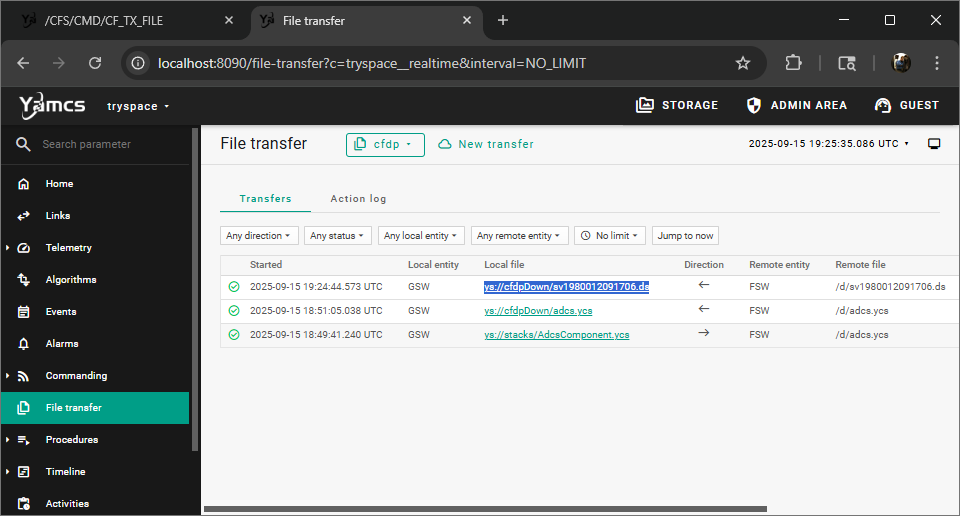
Ignore the other files in the above screenshot as they were from prior testing.
Review
Congratulations! Commissioning of the DRM spacecraft is complete.
You have:
- Established a stable command and telemetry link.
- Verified the health of the spacecraft's core systems.
- Powered on and configured the ACS and primary payload.
- Transitioned the vehicle from a post-launch safe state to being fully mission-ready.
Next steps include performing day-to-day nominal operations.
Last updated: 20250915